
This year the tablet wars are heating up with entrants from RIM (BlackBerry Playbook), Android (in the shape of the very capable Motorola Xoom) and of course, who can ignore the iPad 2.
A while back, one of the earliest Android tablets to hit the market comes from Samsung in the form of the Galaxy Tab which was launched in Malaysia together with Maxis. Earlier on, we had a brief hands-on experience with the Galaxy Tab at the launch roadshow but recently Samsung had given us the opportunity to test the device out more extensively.
After having the device for an extended period, we are able to share with you our findings on how is it like living with a Galaxy Tab on a day-to-day basis.
Size
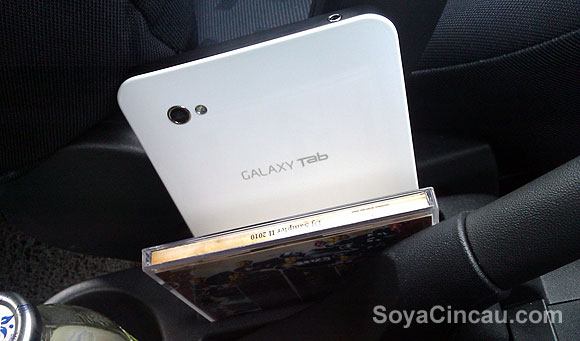
The one thing that we really like about the Galaxy Tab is its diminutive size. What can we say, it’s just perfect, just the right size to fit exactly between a smart phone and notebook in our everday use. The size of the Galaxy Tab makes it very easy to stow just about anywhere from the cubby holes of a car to a small hand bag all without bringing attention to itself.
In terms of pocketability, the Galaxy Tab fits nicely in the back pockets of this reviewer’s jeans as well. Though if you are planning to do the same, we strongly recommend that you remember to take the Galaxy Tab out of your back pocket before sitting down.
So in terms of size, if you’re constantly on the go, the smaller 7-inch form factor of the Galaxy Tab makes a lot of sense. It’s something we got use to very quickly and appreciate very much.
In our hands, the weight and dimensions of the Galaxy Tab feels good, very much similar to holding a paperback novel. Despite the display on the Galaxy Tab being a standard TFT-LCD fair instead of the more lustrous AMOLED kind, the screen on the Galaxy Tab didn’t disappoint with vibrant colour reproduction and crisp, clear text renditions. The quality of the display is partly contributed to the high resolution of the screen at 1024×600 pixels which equates to 170 PPI (Pixels per Inch density). In comparison the iPad’s 9.7-inch 1024×768 display has a pixel density of 132 PPI.
Web Surfing
During our initial first impression, we noted that web surfing experience using the Galaxy Tab’s built-in browser wasn’t as smooth as we would like it to be as it things tend to lag and freeze up when scrolling through web pages. We found this a bit weird because the Samsung Galaxy S with roughly the same processor speed and RAM never showed any difficulty when rendering web pages in a jiff.
We suspect that the native web browser on the Galaxy Tab is mostly to blame for the laggy web browsing experience because when we tried surfing the web with third-party browsers, in this case FireFox for Android, we noticed the web pages scrolled much smoother.
Despite the raggedy performance of the native web browser, the Galaxy Tab was still able to deliver a pleasant experience as text remained comfortably readable even when web pages are viewed in full width. Other than that one gripe, the Android 2.2 OS on the Galaxy Tab produced a buttery smooth user experience.
On screen Input
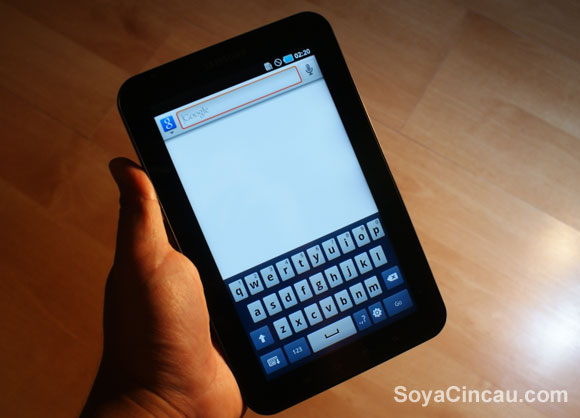
For input, the Galaxy Tab like the Galaxy S has Swype pre-installed. We like Swype as an input method but with a larger screen, the advantages of Swype is somewhat lost in the transition. Because of the larger screen real-estate Swyping requires a little more effort that when you do it on a smaller screen because you have a larger area to cover when you’re inputting words. This issue is aggravated in landscape mode as you can imagine.
If you plan to type the normal way, the Galaxy Tab in portrait mode is pretty easy on the thumbs as both ends of the keyboard are well within comfortable reach. While in landscape mode, things get a little trickier as the keys doesn’t actually increase much in size making it not as comfortable to type on as compared to say the iPad’s keyboard. In our day-to-day use we found ourselves using the Galaxy Tab primarily in portrait mode.
Though there is room for improvement in the the Galaxy Tab’s keyboard, we have to say that the UI guys at Samsung really nailed it when it comes to selecting text for editing. When you tap and hold to make a text selection, a giant pin appears. All you have to do then is simply drag the pin to select the desired text. The pin makes selecting text ridiculously easy and accurate. We wonder why selecting text on other devices is not as easy as this.
Telephony
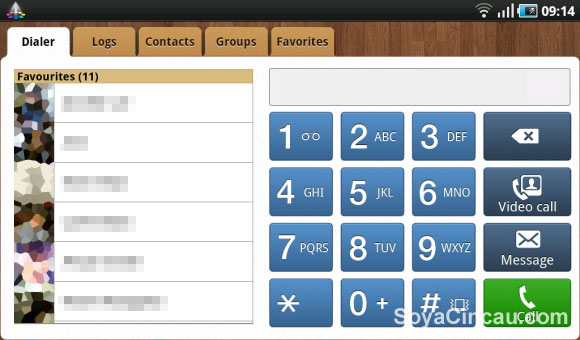
Another major highlight of the Galaxy Tab is the ability to make phone calls as well as send text messages, something which even the latest iPad 2 can’t do. All you need to make calls is a GSM SIM card and you’re good to go. The phone dialer itself is pretty straightforward with all the important dialer features clearly laid out.
For obvious reasons if you’re planning to use the Galaxy Tab to replace your phone as your primary communication device, a Bluetooth headset is highly recommended. Without a BT headset you can still make calls using the built-in speakerphone function with a mic located on the left side of the device with audio coming out from the stereo speakers at the bottom. Though it’s possible, handling phone calls on the Tab sans a BT headset is ill-advised because 1) you look silly doing it, 2) your voice become inaudible in noisy environments and finally 3) in the same noisy environment, its going to be difficult for you to hear what the other party is saying as well.
For those of you who like video calling, there’s a 1.3MP camera at the front for that purpose as well.
Camera & Video
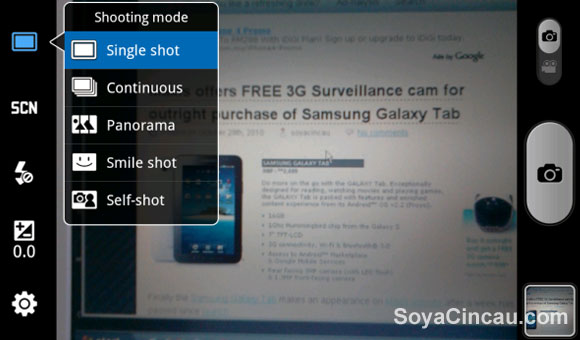
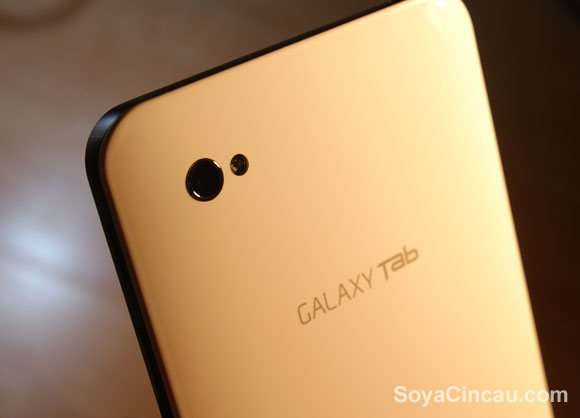
At the back, the Galaxy Tab has a 3.2MP camera with a single LED flash. Initially we felt that the camera was below par but after playing it for extended time, it performed better than expected. The Galaxy Tab’s camera supports auto-focus which works by pressing and holding the on-screen shutter button until your desired object comes into focus. We’re more comfortable with the tap on screen to focus method ala iPhone than the tap and hold method used by Samsung but you’ll get use with it.
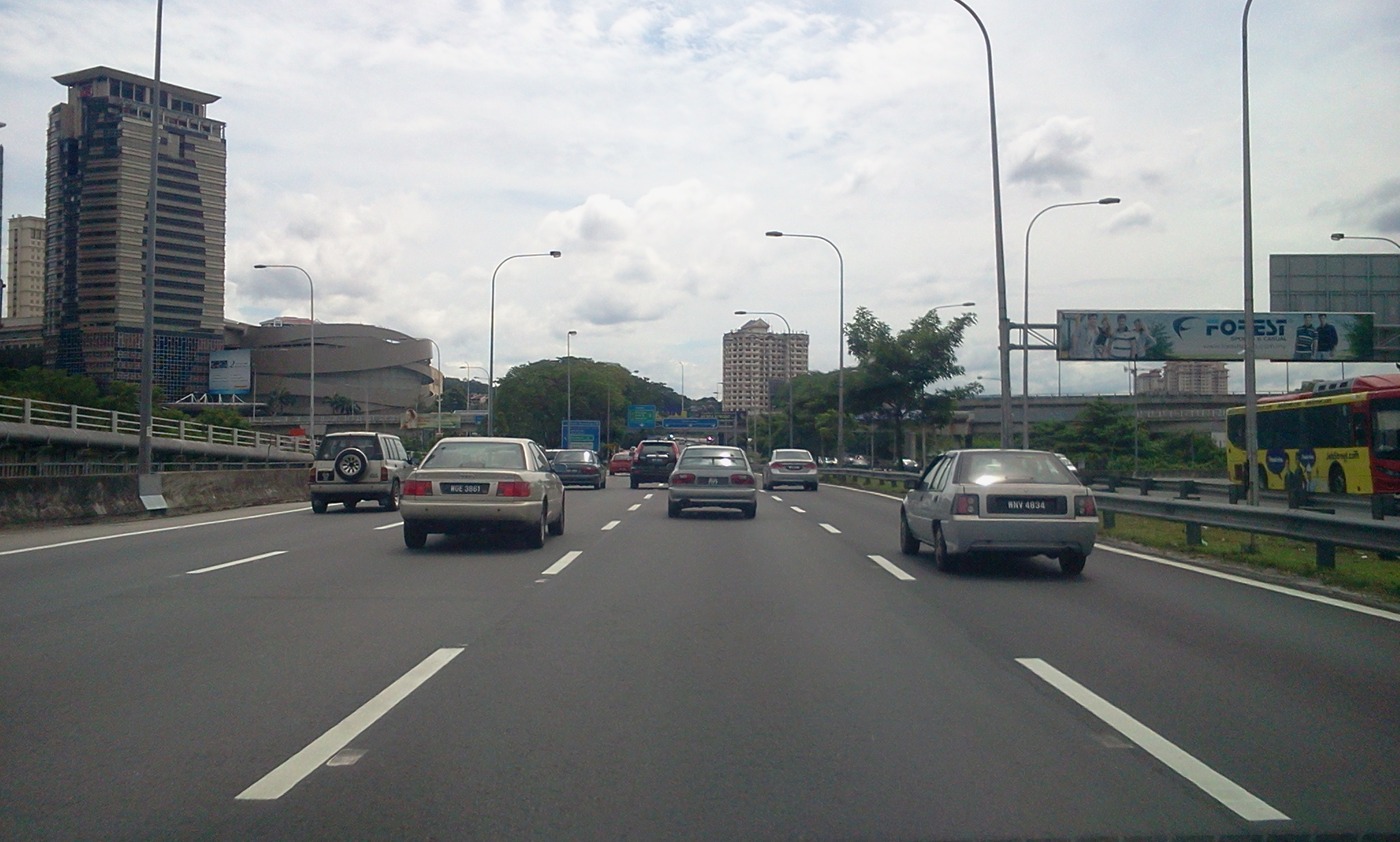
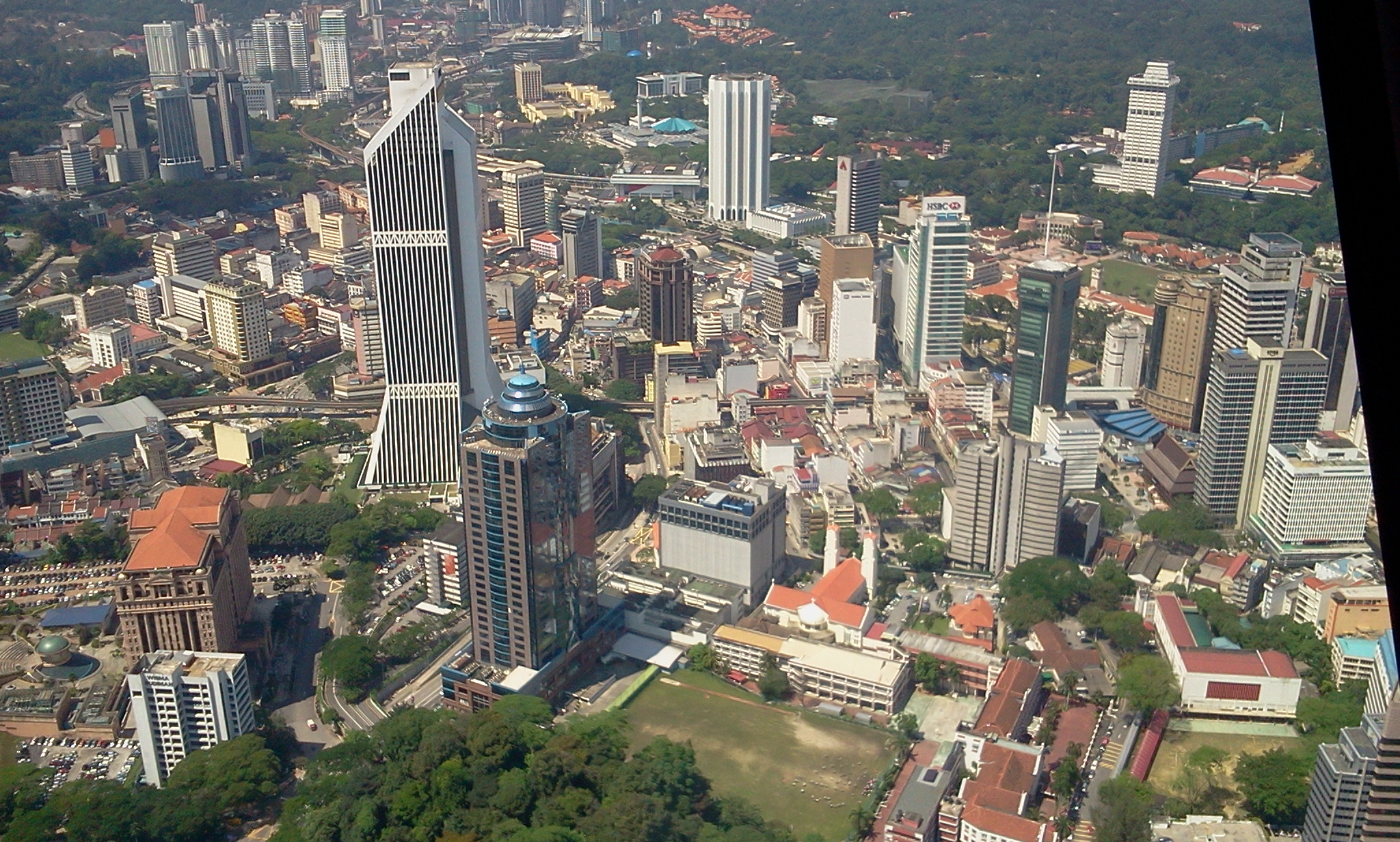
The Galaxy Tab churned decent macro shots as well with us being able to snap sharp images with a focal point as close as 10cm. In terms of details the read camera of the Galaxy Tab is pretty good but we find colour reproduction to be washed out. We actually expected more from Samsung who are typically rather good at attaching decent cameras to mobile devices. Check out the sample shots below:
In terms of video recording, despite the 3.2MP sensor the Galaxy Tab doesn’t support 720p and supports only a maximum video resolution of 720×480. As with the stills, colours in the Galaxy Tab video samples appear washed out, on top of that some details and sharpness are lost as well. Video samples below:
Tools & Apps
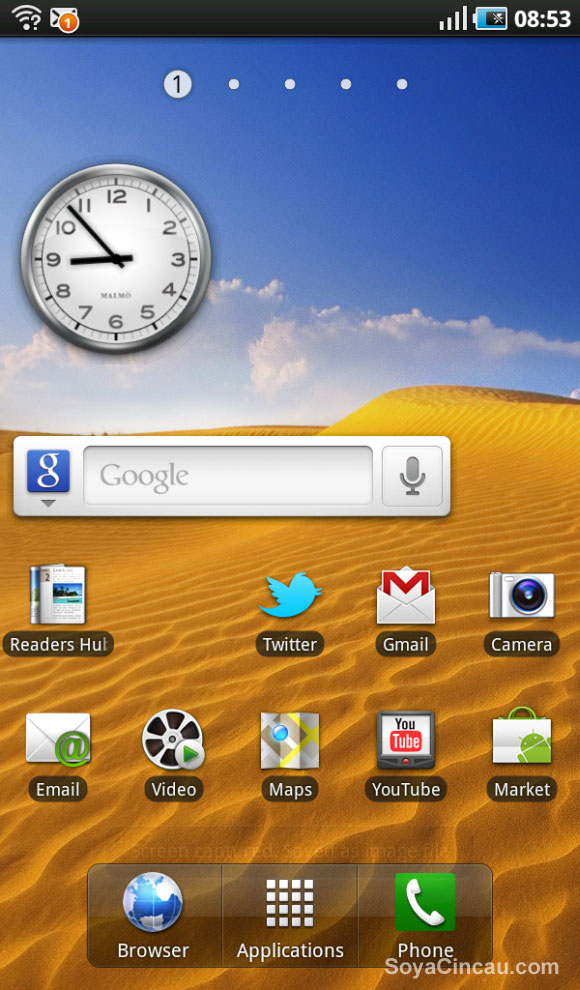
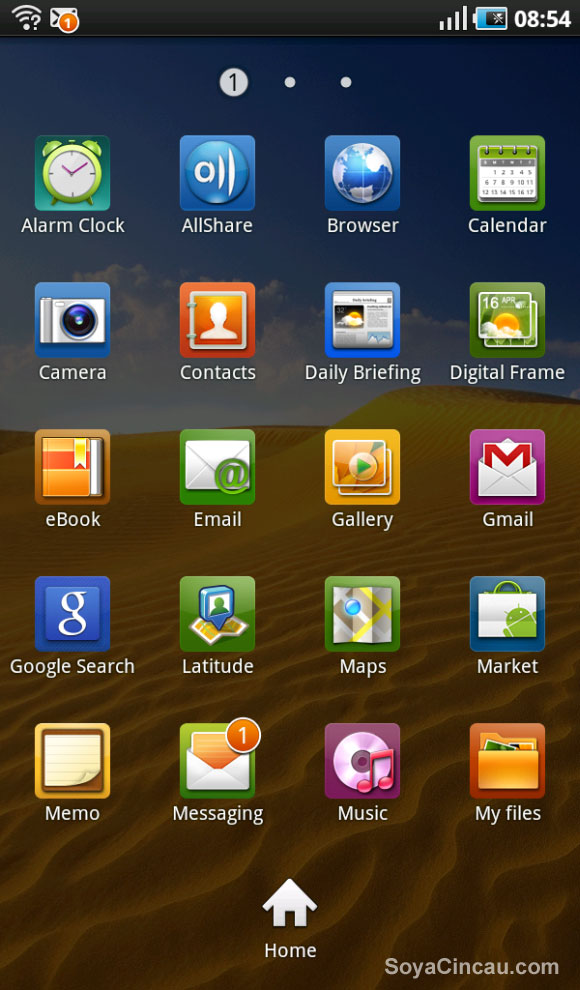
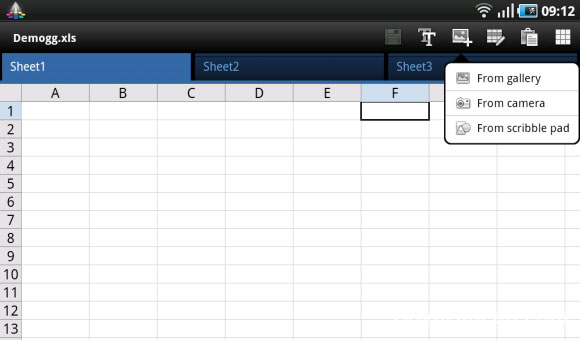
As a digital workhorse, the Galaxy Tab comes pre-installed with several productivity tools and widgets. If you work on MS Office a lot, there’s ThinkFree Office which lets you create, view and edit MS Word, Excel and even PowerPoint documents on the Galaxy Tab.
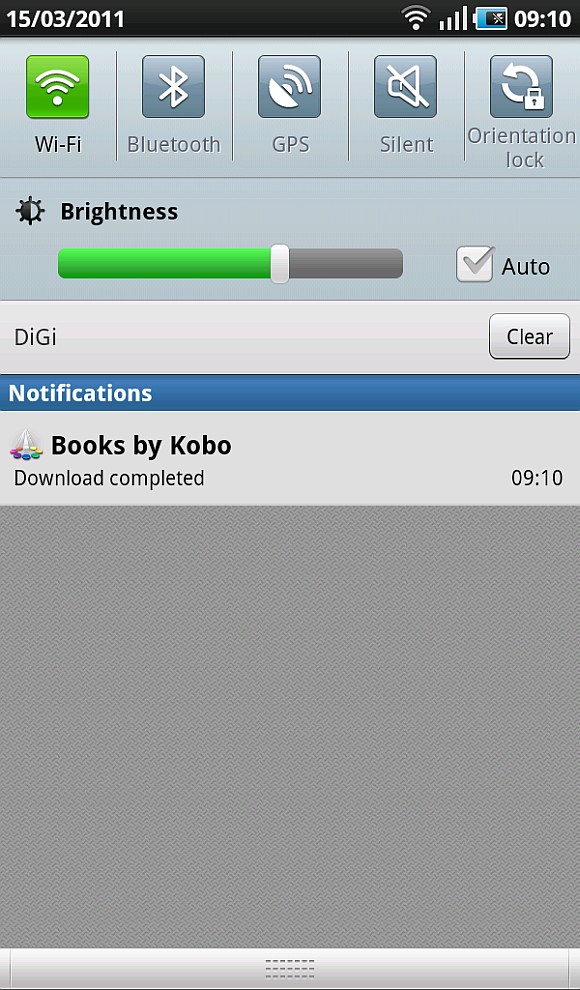
The ability to create new documents is great but as you’d expect the functionality of the ThinkFree Office app is rather limited. Nevertheless, it is still great for making those small edits on the go. Just like the Galaxy S, the tab also comes with a Daily Briefing widget that you can customize to receive updates on weather, news and latest stock market prices in one app. If you’re into eBooks, the Galaxy Tab comes with Kobo a eBook reader app which lets you purchase and download books as well. All of these apps do what they are designed to do and are pretty easy to use, so we don’t really any complaints here.
Connectivity & Battery Life
The Galaxy Tab has all the connectivity options you would expect from a top notch smart phone like WiFi, Bluetooth and GPS which all are accessible from the drop down Android notification bar. It is also worth mentioning that the orientation lock for the display is also accessible on the same notification bar as well.
One connectivity feature which most people will appreciate is the Galaxy Tab’s WiFi hotspot capability which can support simultaneous connection of up to five devices. The WiFi hotspot setup if straightforward and easy allowing you to get your other WiFi enabled devices connected to the Internet via the Galaxy Tab almost instantly.
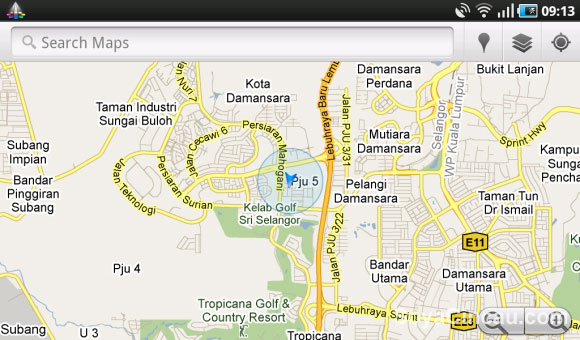
We tried using the Galaxy Tab as a hotspot for an hour and surprisingly it didn’t get too hot, just only slightly warm just below the rear camera area. During our extensive test with a mixture of Google Maps, hotspot usage, web surfing and games, the Galaxy Tab’s battery life was good for a little over a day’s worth of use in between charges.
Conclusion & Final thoughts
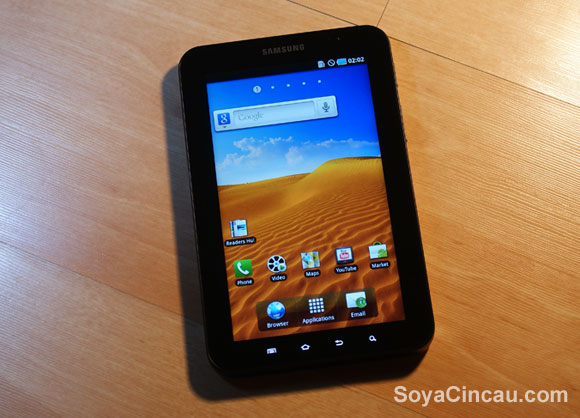
After using the Galaxy Tab for a week, we are convinced that it’s a tablet worth considering. At first we thought of it as just a bigger version of the Galaxy S but the larger screen and 4000mAh battery makes the Galaxy Tab far more practical and useful than we thought.
The Galaxy Tab is less bulky than a 10-inch tablet making it delightfully pocketable and easy to carry around all day. Having said that, there are also some cons especially when it comes to typing. The screen isn’t big enough to allow you to type comfortably in landscape mode like the iPad but the smaller size also makes it an advantage to type in portrait mode with your two thumbs.
Priced at RM2,699, the Galaxy Tab is pricey when compared to the iPad. However we must point out that it really isn’t fair to pit the Galaxy Tab squarely with the iPad as both devices are fundamentally different in the way it is intended to be used.
Where the iPad is meant to be a device bridging your smart phone with your notebook or desktop computer supplementing both your computer and your phone, the Galaxy Tab is what we’d consider a smart phone replacement for those who want the functions of a smart phone but with the added practicality provided by a larger screen. In other words, the iPad can never replace your smart phone but the Galaxy Tab can.
With that in mind and considering the fact that the Galaxy Tab plans from Maxis bundle voice calls and data into one, then the ideal Galaxy Tab buyer would be one that uses the tablet as a primary communication device. If you look at it this way, the RM2,699 asking price for the Galaxy Tab seems reasonable and it is just RM100 more than the outright price of RM2,599 for the Galaxy S. That price difference isn’t that bad at all considering the benefits and practicality that the 7-inch display brings.
The question would be is this the device for you? That all depends on you. If you don’t mind using a BT headset all the time when making phone calls and you don’t mind the additional heft a 7-inch tablet brings relative to a handphone, then you might consider the Galaxy Tab as a rather good phone-tablet hybrid device but only you can make that decision.
Full Gallery