• 中文版
  • BM
  • News
  • Deals
  • Reviews
    • First Impressions
    • Hands-on
    • Comparisons
  • Tech
    • Mobile
    • Computers
    • Cameras
    • Wearables
    • Audio
    • Drones
  • Telco
    • Celcom
    • Digi
    • Maxis
    • Time
    • Tune Talk
    • U Mobile
    • Unifi
    • Yes
  • Cars
  • Contribute
  • Jobs
Menu
  • 中文版
  • BM
  • News
  • Deals
  • Reviews
    • First Impressions
    • Hands-on
    • Comparisons
  • Tech
    • Mobile
    • Computers
    • Cameras
    • Wearables
    • Audio
    • Drones
  • Telco
    • Celcom
    • Digi
    • Maxis
    • Time
    • Tune Talk
    • U Mobile
    • Unifi
    • Yes
  • Cars
  • Contribute
  • Jobs
Search
  • Tech
    • News
    • Mobile
    • Computers
    • Cameras
    • Wearables
    • Audio
    • Drones
  • Telco
    • Celcom
    • Digi
    • Maxis
    • Time
    • U Mobile
    • Unifi
    • Yes
  • Reviews
    • First Impressions
    • Hands-on
    • Comparisons
  • Buyer’s Guide
  • Opinions
  • Digital Life
  • Video
  • Deals
  • How-To
  • Cars
  • Bahasa Melayu
  • EV
  • Contribute
  • Advertise
Menu
  • Tech
    • News
    • Mobile
    • Computers
    • Cameras
    • Wearables
    • Audio
    • Drones
  • Telco
    • Celcom
    • Digi
    • Maxis
    • Time
    • U Mobile
    • Unifi
    • Yes
  • Reviews
    • First Impressions
    • Hands-on
    • Comparisons
  • Buyer’s Guide
  • Opinions
  • Digital Life
  • Video
  • Deals
  • How-To
  • Cars
  • Bahasa Melayu
  • EV
  • Contribute
  • Advertise
Search
Close
Home News

Here’s how to watch Unifi TV on your Android TV device

  • BY Alexander Wong
  • 27 August 2020
  • 10:38 am
  • Comment
Share on FacebookShare on Twitter

If you’re a Unifi broadband subscriber without a Unifi TV set-top-box, you can still watch their IPTV content on an Android TV device. This would include Smart TVs with Android TV, Android TV boxes such as the Mi Box S or even the new Xiaomi Mi TV stick.

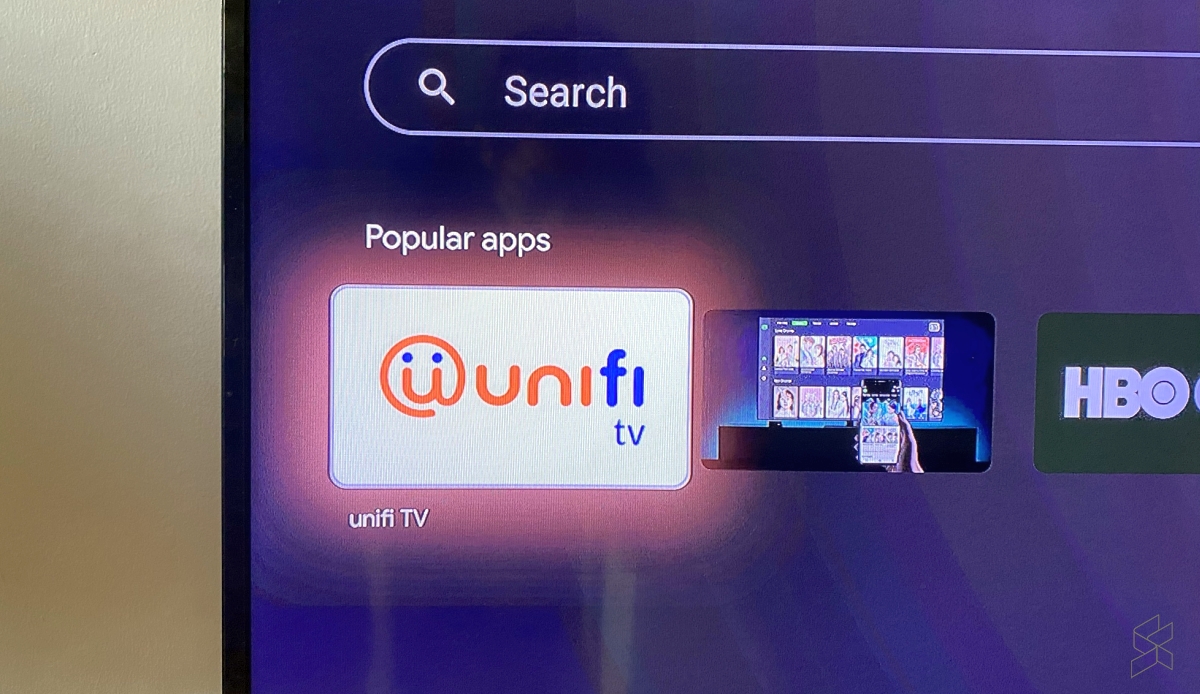
Previously, subscribers on lower Unifi plans would have to watch the channels on their phones or tablets. With the new Unifi PlayTV app on Android TV’s PlayStore, you can watch live TV channels and video-on-demand (VOD) content on the big screen.

Unifi PlayTV Android TV

According to the FAQ, the app supports Google certified devices running on Android TV OS. Take note that it must be an Android TV platform and not any TV boxes with Android will be supported.

To install Unifi TV, just launch the Google Play Store on your Android TV device, search for Unifi TV and hit install. Once that’s done, just login with your Unifi TV ID and password.
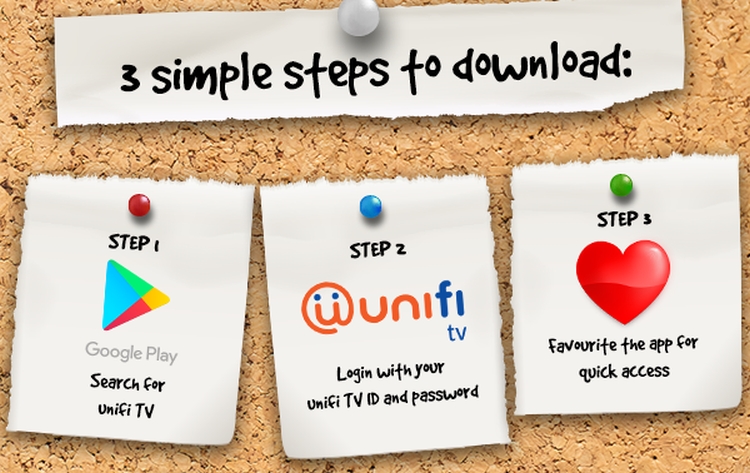
The login details are different from your Unifi broadband ID and you can reset the password through the Unifi PlayTV app on your phone. Take note that the ID uses the xxxxx@iptv format. You can follow the instructions here.


In case you missed it, TM is now offering Unifi with higher 500Mbps and 800Mbps fibre broadband speeds. For greater value, you can add on Unifi TV Plus Box and a Unifi Mobile SIM card with unlimited data for an extra RM29/month.

Related reading

TM now offers 800Mbps and 500Mbps Unifi fibre broadband plans
4K Unifi Plus Box is offered for free on Unifi Fibre Broadband
Unifi offers free access to all Unifi TV channels
Tags: Android TVTMUnifiUnifi PlayTVunifi TV
Alexander Wong

Alexander Wong

POPULAR

Upgraded To a New Phone? Cool. But When Was the Last Time you Upgraded your Shaver?

November 10, 2025

5 Reasons Every Home Should Have a Smart Security System

November 11, 2025

Solar ATAP: The new solar programme for consumers will only start in 2026

December 2, 2025

Here’s how to watch Unifi TV on your Android TV device

August 27, 2020
Perodua QV-E EV

Perodua QV-E is now official: Electric sportback with 201hp, 445km NEDC range, priced at RM80k not inclusive of battery subscription

December 1, 2025

GrabRewards is now GrabCoins: Now with even more ways to earn and save

November 17, 2025

Copyright © 2025 · SoyaCincau.com
Mind Blow Sdn Bhd (1076827-P)

  • ADVERTISE
  • DISCLAIMER

Copyright © 2025 · SoyaCincau.com – Mind Blow Sdn Bhd (1076827-P)

  • ADVERTISE
  • DISCLAIMER