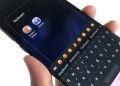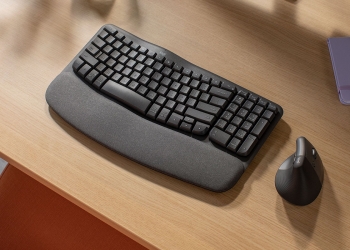
Logitech’s Wave Keys ergonomic keyboard will help reduce any pains while typing
If you are looking to step into the world of ergonomic workspaces, you should check out the new Wave Keys ...

If you are looking to step into the world of ergonomic workspaces, you should check out the new Wave Keys ...
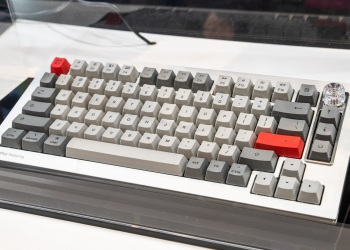
Another device that OnePlus showed off at the ongoing Mobile World Congress (MWC) is the OnePlus Featuring Keyboard 81 Pro, ...

Have you ever looked all over your keyboard because you can't find the exact key you wanted to click on? ...
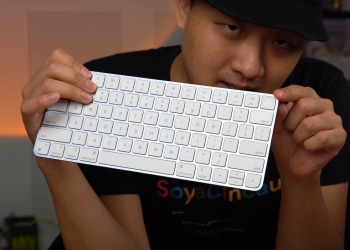
A report by Patently Apple showed that Apple is working on a keyboard with a computer built into it. They ...

Those of you who are into mechanical keyboards are also likely familiar with the high price tags that go along ...
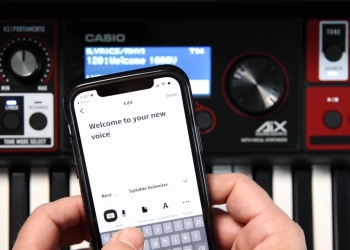
Casio just released the Casiotone CT-S1000V, a keyboard with vocal synthesis features that allows it to sing anything you want. ...

The average person types at a speed of 40 words per minute (WPM). Nerds who spend all day at their ...
The new Magic Keyboard with Touch ID from Apple is now available for purchase in Malaysia. With Touch ID, you ...
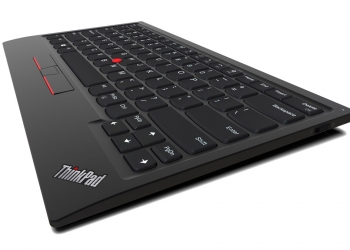
Many current day users have grown up accustomed to using trackpads whenever a mouse isn't nearby, or convenient to use. ...
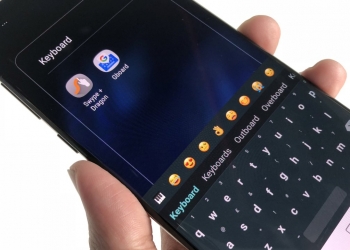
If you've used an Android smartphone for at least 6 years, you've probably used Swype as your default keyboard. Instead ...