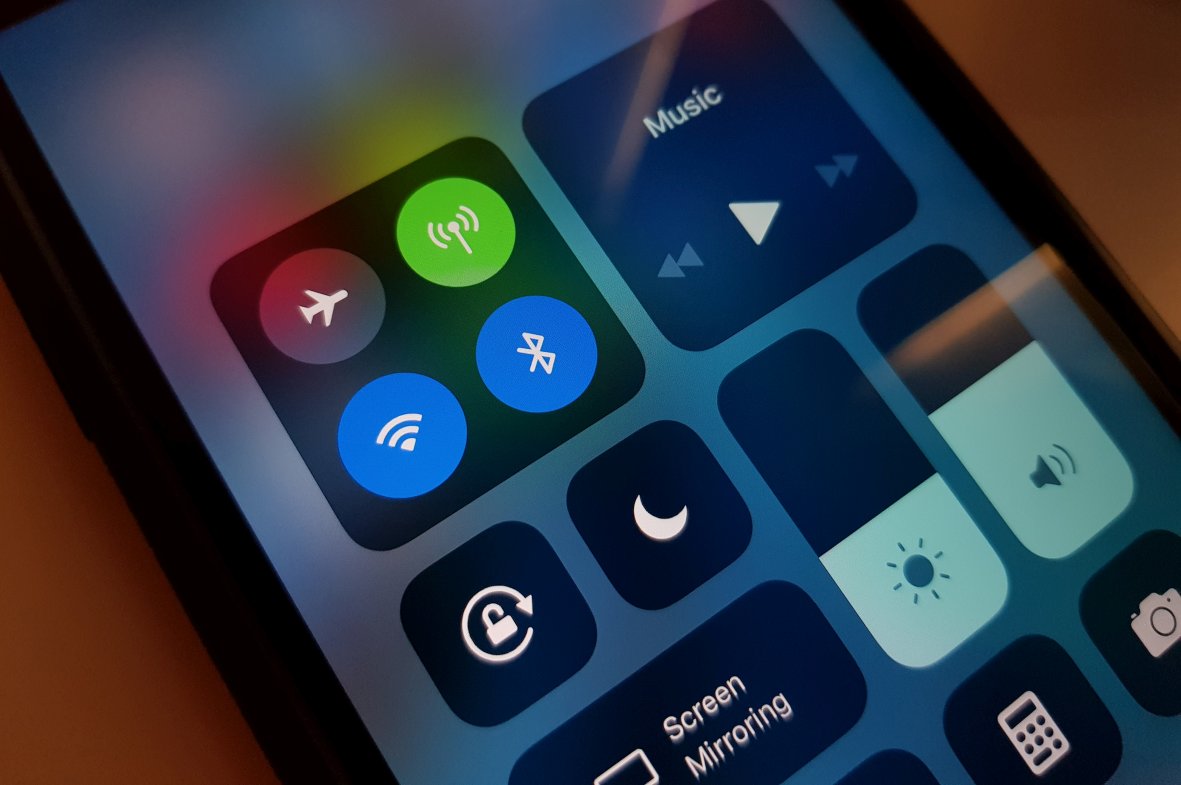
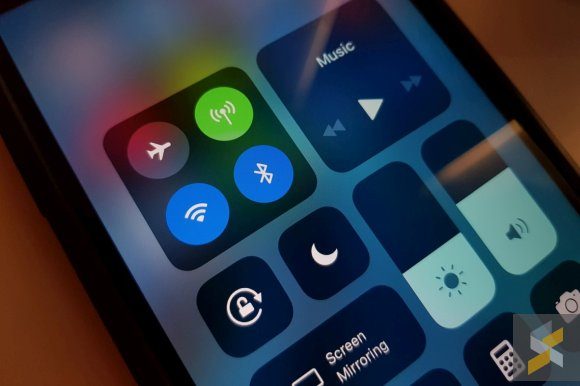
The redesigned control centre is one of our favourite features on iOS 11. By swiping up from any screen, you can switch off/on mobile data and even hotspot easily without having to dig through settings. On top of that, you also get your usual Airplane mode, WiFi and Bluetooth toggle as well.
However, did you know that when you switch off Bluetooth and WiFi from the control centre, it isn’t really turned off as you would expect?
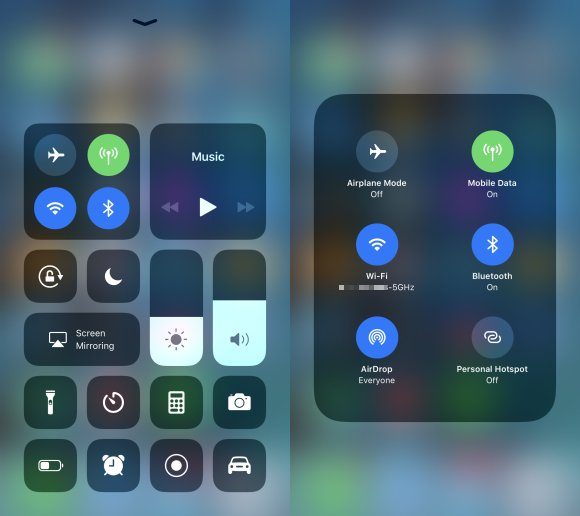
Widgets are supposed to be shortcuts to make our life easier. If you have an on and off switch, it is supposed to work the way it is designed to do. When your Bluetooth and WiFi are completely switched off on the actual settings menu, tapping these buttons would switch it on, allowing you to connect to your paired devices and saved WiFi connections.
However, if you turn them off on control centre, it doesn’t switch off completely. As discovered recently, all that does it simply disconnect your current WiFi and Bluetooth connection. Upon checking under settings, you’ll notice that both Bluetooth and WiFi are still switched on. Fortunately, turning off Mobile Data on control centre works 100% as intended.
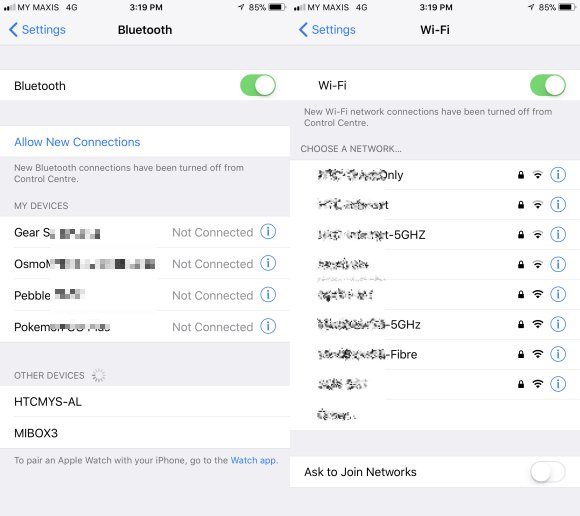
Is this a bug? Not at all and apparently, it is a feature that Apple intended. According to this support page, iOS 11 intentionally keeps its Bluetooth and WiFi radios working to ensure that its key features below are available:
AirDrop
AirPlay
Apple Pencil
Apple Watch
Continuity features, like Handoff and Instant Hotspot
Instant Hotspot
Location Services
It also mentions that to switch them off completely, you’ll need to do it the old fashion way via Settings. You can watch how WiFi and Bluetooth are still running despite being switched off from the control centre:
Apple’s intention is probably to reduce any connectivity issues with their own accessories. Some may just want to disconnect from a Bluetooth headset but would still want to ensure that their Apple Watch or Apple Pencil is still connected. However, this would mislead users into thinking that they had disabled their Bluetooth and WiFi to save on power.
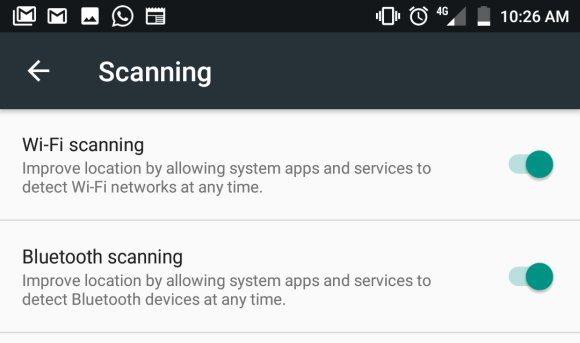
It is interesting to point that Android is doing something similar as well but at a smaller scale. By default, Android enables WiFi and Bluetooth scanning which will continue to run even when you switch off Bluetooth and WiFi. Unlike iOS 11, these are meant only to scan for available networks and for location services.
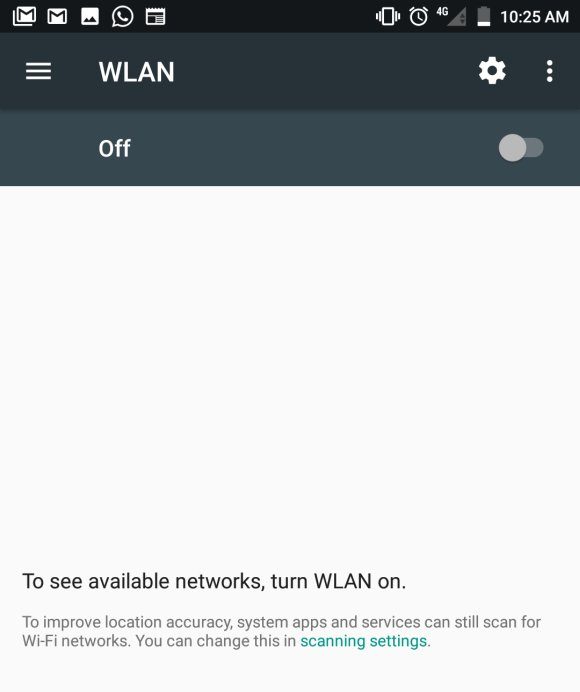
If you’re paranoid and think it’s draining more power than necessary, you can always turn this scanning feature off. To do this, go to your WiFi settings page, and turn off WiFi. Instead of a list of available WiFi points around you, you should see a few lines of text as shown above. Tap on that “improve accuracy/scanning settings” link and you can turn off Bluetooth/WiFi scanning.
For those on iOS 11, what do you think? Is this a big deal or a worthwhile compromise to keep your Apple accessories connected? Or would you rather have everything turned off completely on control centre? Let us know in the comments below.
[ SOURCE ]